


How to Build a WooCommerce Private Store Step by Step
Creating a WooCommerce private store is an excellent way to offer exclusive products or services to a select group of customers while maintaining a professional and secure online presence. Whether you’re running a members-only shop, a wholesale business, or selling premium items, a private WooCommerce setup ensures that only authorized users can access your products. This exclusivity not only enhances customer experience but also safeguards sensitive data and strengthens your brand’s image.
WooCommerce provides multiple ways to set up a private store, from password protection and user role restrictions to using advanced third-party plugins that add extra security and customization options. In this guide, we’ll walk you through the process of building your private WooCommerce store, highlighting the benefits of each method and how to adapt them to your business needs. Pairing your setup with professional WordPress themes can further enhance your store’s appearance, performance, and credibility, ensuring that only the right audience can view and purchase your offerings effortlessly.
Who Needs a WooCommerce Private Shop?
A WooCommerce private store is an excellent solution for businesses with specific customer needs, offering a secure and exclusive shopping experience. Here are detailed points explaining who can benefit from setting up a private WooCommerce store:
Wholesale Businesses: WooCommerce private stores are ideal for wholesale businesses that want to restrict access to only authorized retailers or partners. By using a private shop, you can ensure that only approved customers can view your products and place bulk orders, keeping competitive pricing and wholesale deals confidential.
Subscription-Based Services: If you offer subscription services or membership-only products, a WooCommerce private store provides an effective way to control access. Members can log in to view and purchase products that are not available to the general public, giving them an exclusive experience that adds value to the membership.
Luxury or High-End Products: Businesses selling luxury items, limited-edition products, or exclusive collections can enhance exclusivity by using a WooCommerce product customizer to tailor product pages and control access. This approach helps maintain a premium shopping experience, creating a sense of scarcity and driving higher demand from a select audience that values uniqueness and personalization.
B2B (Business-to-Business) Stores: These stores are perfect for B2B eCommerce businesses that need to cater to specific clients. With different pricing tiers or customized products for businesses, a private store can ensure that only authorized business clients have access to special offers and features.
Multi-Store Owners: If you run multiple stores under a WooCommerce multi-store setup, you may want to make one or more of these stores private. This allows you to have different stores dedicated to different customer segments (e.g., wholesale, membership, or local market) while keeping the general store public.
Educational or Training Courses: WooCommerce private stores are also ideal for businesses selling educational content, such as online courses, training materials, or digital downloads. You can create exclusive access for enrolled students or registered members, ensuring that only paying customers can access the resources.
Product Pre-Launches and Beta Testing: If you are preparing to launch a new product or service, a WooCommerce private store can be used to allow a select group of customers to try out your product in a controlled, limited environment. This helps to generate buzz while gathering feedback before the full launch.
High-Security Products: For stores selling sensitive products such as pharmaceuticals, medical supplies, or confidential software, a WooCommerce private store adds an extra layer of protection. Access control ensures that only licensed individuals or verified customers can purchase these products, reducing the risk of illegal sales.
Event or VIP-Only Sales: Businesses holding exclusive sales events or offering VIP-only access to sales and promotions can use a WooCommerce private store to restrict entry. This way, only customers with invitations or specific credentials can participate in limited-time promotions or product launches.
Customized or Personalized Products: If your business focuses on custom-made or personalized products, it’s essential to customize WooCommerce product page settings to provide customers with a truly tailored shopping experience. By customizing product pages and managing access through private store features, you can offer personalized options, display exclusive variations, and ensure each customer enjoys a unique and seamless buying journey based on their specific preferences.
How to Hide Your Entire WooCommerce Store Using PPWP Pro
PPWP Pro (Password Protected WordPress) is a powerful plugin that allows you to hide your entire WooCommerce store from the public. By using this plugin, you can restrict access to your site, ensuring that only authorized users can view your products and make purchases. Here are the steps to hide your entire WooCommerce store using PPWP Pro:
Step 1: Install and Activate PPWP Pro Plugin

- Purchase and Download: First, purchase the PPWP Pro plugin from the official website. You’ll need the premium version to hide your entire WooCommerce store.
- Install the Plugin: Log in to your WordPress admin dashboard. Navigate to Plugins > Add New, then click Upload Plugin. Upload the plugin file you downloaded and click Install Now.
- Activate the Plugin: Once installed, click Activate to enable PPWP Pro on your site.
Step 2: Configure PPWP Pro Settings
- Access Plugin Settings: After activation, go to Settings > PPWP Pro from the WordPress dashboard.

2. Enable Protection: Under the General tab, you'll see an option to Enable Protection. Check this box to activate the protection feature for your WooCommerce store.

3. Set Password Protection: You can set a password for the entire site or specific parts of it. Choose whether you want to restrict the whole store or just certain pages. If you want to hide the entire store, choose Protect All Pages.
Step 3: Customize Your Protection Message

- Choose a Custom Message: You can display a custom message to visitors who try to access your store while it’s protected. This could be a message indicating that the store is private or under construction.
- Add Custom Text: In the settings, you can also customize the message that visitors will see. For example, "This store is currently private. Please log in to access products."
Step 4: Restrict WooCommerce Store Pages
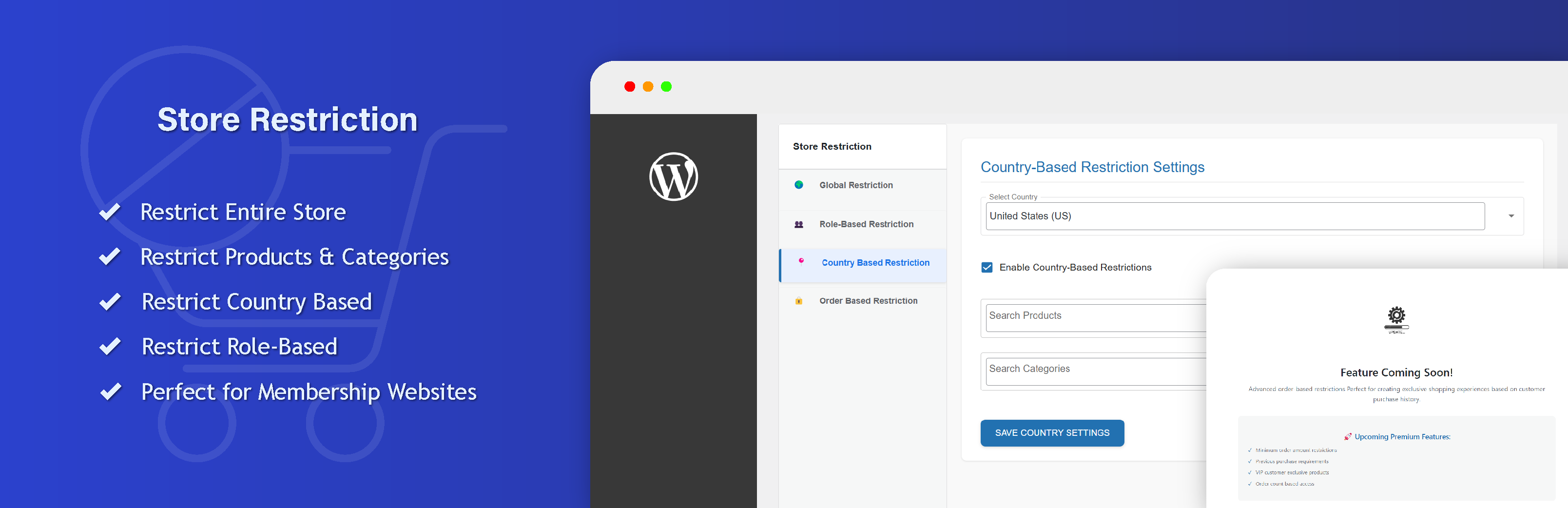
- Restrict Store Pages: In the PPWP Pro settings, you can configure which pages of your WooCommerce store are hidden. Under the Advanced Settings, find the option to hide specific WooCommerce pages such as the shop page, product pages, checkout, and cart.
- Exclude Pages from Protection: If there are certain pages you want to remain visible (such as a "Contact Us" page or "About Us" page), you can exclude them from the protection.
Step 5: Set Access Permissions

- Restrict Access by User Role: PPWP Pro allows you to restrict access based on user roles. You can configure the plugin to allow only certain user roles (e.g., Admin, Shop Manager, Customer) to view the store. Under the User Roles section, select which roles can access the store while others are restricted.
- Add Individual Users: Alternatively, you can whitelist specific users by adding their email addresses under the Allowed Users section.
Step 6: Test Your Store Access

- Test the Password Protection: After configuring the settings, log out of your admin account and visit your store’s front-end. Try accessing various pages of the store to ensure they are protected.
- Login as Authorized User: If you're an authorized user, log in using the password you set in the protection settings. This will confirm that you can access the store, while others cannot.
Step 7: Monitor and Adjust Settings as Needed

- Adjust Protection Settings: If you need to modify the protection settings, simply return to Settings > PPWP Pro. You can update the message, change the password, or allow more user roles to access the store.
- Deactivate Protection: When you're ready to make the store public again, you can disable the protection at any time by unchecking the "Enable Protection" option.
Password Guidelines
- Length: Ensure passwords are at least 12 characters long for stronger security.
- Complexity: Use a mix of uppercase letters, lowercase letters, numbers, and special characters.
- Avoid Common Words: Don’t use easily guessable words like "password," "123456," or personal details like your name or birthdate.
- Unique Passwords: Create unique passwords for each account to prevent cross-site breaches.
- Password Manager: Use a password manager to generate and store complex passwords securely.
- Two-Factor Authentication (2FA): Enable 2FA for an extra layer of security on accounts that support it.
- Change Regularly: Update passwords periodically, especially for sensitive accounts.
- Avoid Sharing: Do not share passwords with others unless necessary, and use encrypted methods for sharing.
- Check for Leaks: Regularly check if your passwords have been compromised using services like "Have I Been Pwned."
- Be Cautious with Auto-Fill: Avoid using browser auto-fill for passwords on shared or unsecured devices.
Make the Entire Store Private with WooCommerce Memberships
- Install WooCommerce Memberships Plugin: To create a WooCommerce private store, start by installing and activating the WooCommerce Memberships plugin one of the must-have WordPress plugins for managing exclusive access. This powerful tool enables you to control memberships and restrict specific areas of your eCommerce website, ensuring only authorized users can view or purchase selected products.
- Set Up Membership Plans: Create different membership plans for your customers. These plans will define the access levels, allowing only members to view and purchase products from your store. For example, you can have a basic plan for exclusive products and a premium plan for VIP access.
- Restrict Entire Store Visibility: Once your membership plans are set up, you can configure the plugin to restrict access to your entire eCommerce site using WooCommerce. This setup is especially useful when you build free e-commerce website options that allow only logged-in members to view products or exclusive content, ensuring a secure and personalized shopping experience
- Define Product Access: After restricting the store, you can decide which products are accessible based on the membership level. For example, a lower-tier membership might give access to some products, while a higher-tier membership grants access to all products, including exclusive ones.
- Set Up Custom Messages: Display a custom message for non-members who try to visit your store. This message could inform them that they need to sign up for a membership to access the store.
- Offer Trial Periods: Consider offering a free trial membership for new users to entice them to join. This will give them temporary access to your store and encourage them to upgrade to a paid plan.
- Manage Memberships Efficiently: WooCommerce Memberships makes it easy to manage your customers and their membership levels. You can view who has access, track renewals, and send automated reminders for expiring memberships.
- Monitor and Adjust Access: As your business evolves, you can update your store settings. For instance, you can add new products exclusively for specific membership tiers or create promotions that are only available to members.
Restrict WooCommerce Access via Paid Member Subscriptions
-
Install Paid Member Subscriptions Plugin:
Install the Paid Member Subscriptions plugin to control access to your store based on membership plans. -
Create Membership Plans:
Set up different membership tiers, offering varied levels of access. For example, basic plans for standard customers and premium plans for exclusive products. -
Restrict Store Access:
Configure the plugin to restrict access to the entire eCommerce website using WooCommerce. Only members with active subscriptions can view and purchase products. -
Custom Login and Registration:
Customize the login and registration process to ensure only subscribed members can gain access to the store. -
Monitor Subscriptions:
Manage and track membership subscriptions, allowing you to control which users have access to your private store based on their plan..
